Overview
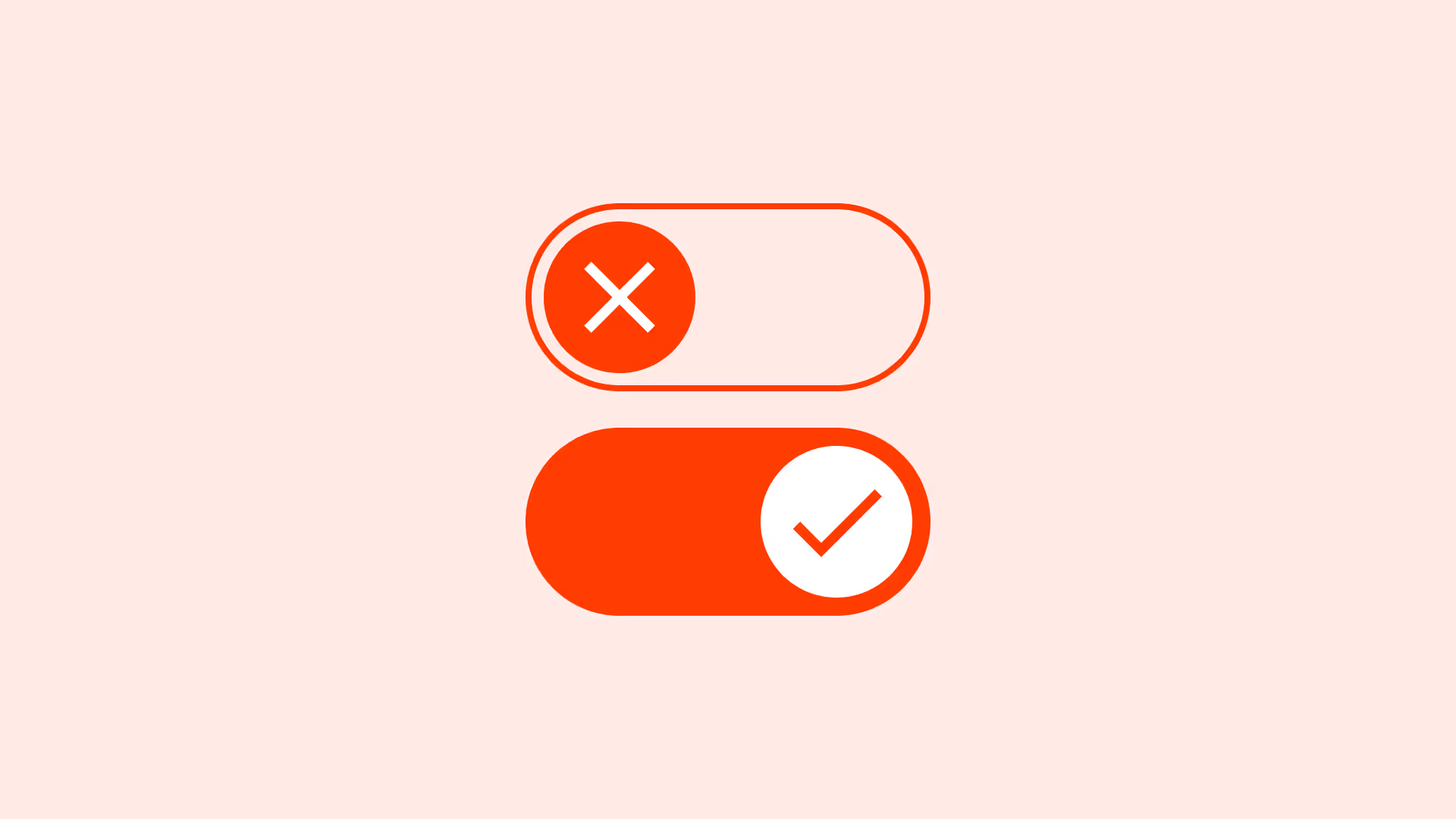
Toggle switches look like physical switches: slide it, and something turns on or off. They are best for:
- Persistent system settings (for example: Wi‑Fi on/off).
- Features that apply instantly without requiring confirmation.
They are not suitable for one-time actions (like “Submit”), nor for multiple selections (use checkboxes instead).
Because toggle switches change state instantly, clarity and accessibility are critical. Users must know:
- What the control affects.
- Which state is active (on or off).
- That changes are reversible.
Best practices
Guidelines for designing and implementing toggle switches.
Use for persistent, binary settings
Toggle switches are appropriate for preferences that remain in effect until changed. Do not use them for actions or tasks.

References:
Provide clear, adjacent labels
Labels must describe the controlled setting (“Enable notifications”), not the state itself. Avoid ambiguous labels like “On/Off.”
References:
Make states visually and programmatically distinct
Users should instantly recognize on vs off. Use contrast, clear position changes, and programmatic support with aria-checked="true/false".
References:
Apply changes immediately, but keep them reversible
Toggles must act right away, but users should be able to switch back without penalty. Avoid destructive or irreversible toggles.
References:
Support keyboard and screen reader access
Switches must be operable via keyboard (space/enter) and properly announced by screen readers.
References:
Ensure adequate touch targets on mobile
Switches should be at least 44×44 px to meet accessibility guidelines for touch.
References:
Common mistakes
Frequent mistakes when using toggle switches.
Using toggle switches for one-time actions
Toggles are not for “Send” or “Delete.” These require buttons.
Not labeling switches clearly
An unlabeled switch leaves users guessing what setting it controls.
Ambiguous state indicators
Poor contrast, unclear icons, or subtle motion make it hard to tell if something is on or off.
Adding confirmation dialogs to switches
Switches should be immediate. Confirmation disrupts the expected instant feedback.
Summary
Key takeaways for toggle switches.
- Toggle switches are for binary on/off settings that persist.
- Always provide clear labels that describe the controlled setting.
- Ensure on/off states are visually and programmatically distinct.
- Switches should act immediately, but actions must be reversible.
- Design for accessibility: ARIA support, keyboard access, and proper touch targets.
When designed correctly, toggle switches create fast, intuitive control. Misused, they confuse users and create barriers to accessibility.
AI prompts
Ready-to-use AI prompts for design agents. Each scenario is pre-loaded with the UX rules from this guide. Copy, adapt to your context, and generate consistent, well-structured output from the start.
Scenario: Settings toggles
Use when designing on/off settings that take effect immediately and persistently: notification preferences, display options, or feature flags.