Overview
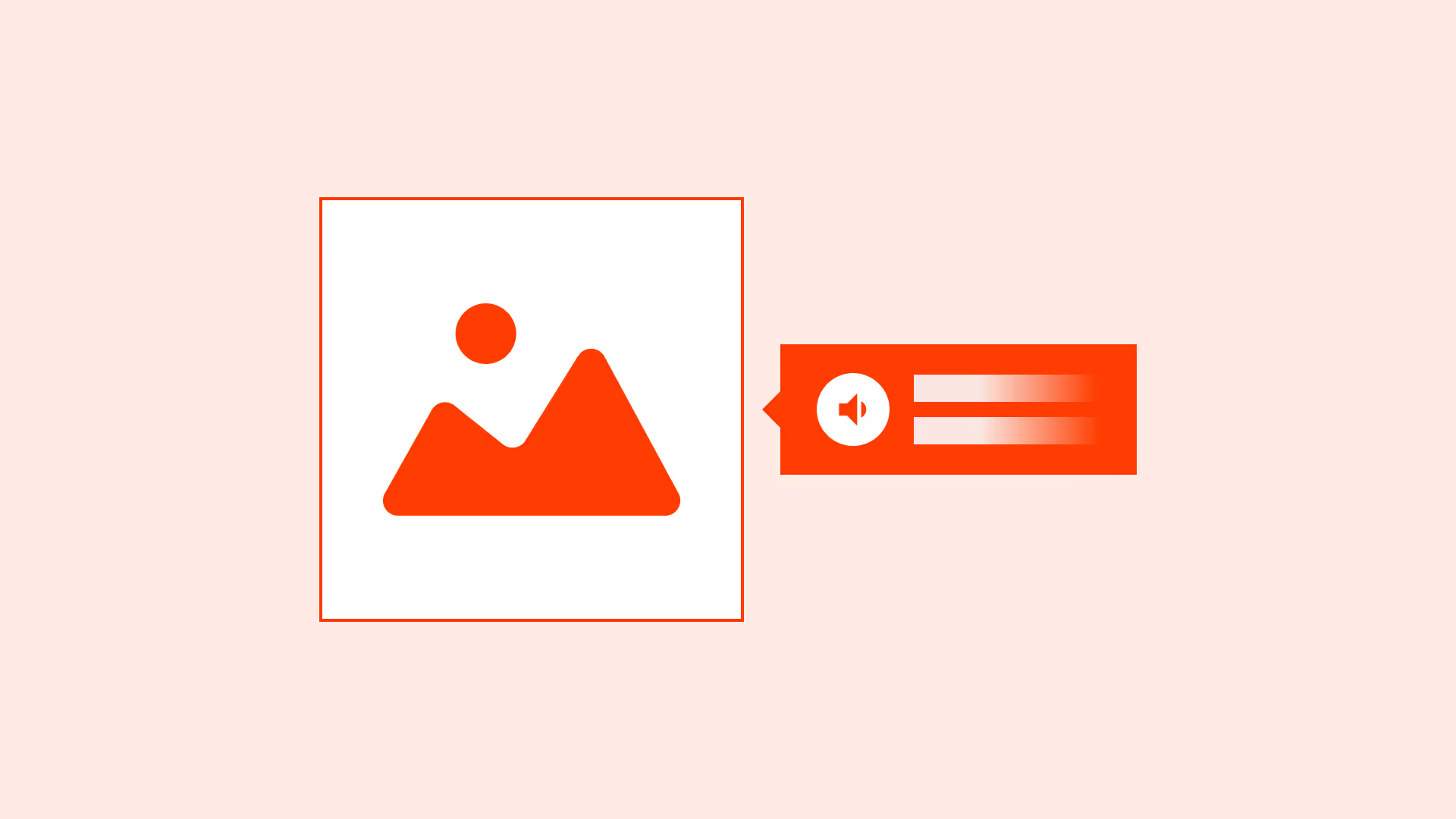
Alt text ensures that people using screen readers or with images disabled can still understand the purpose of an image. It’s not just an accessibility requirement, it’s also essential for usability, content clarity, and SEO.
Good alt text conveys the function and meaning of an image, not just what it looks like. Writing it requires careful consideration:
- What is the image’s purpose?
- Is it decorative or functional?
- Would users miss important context if the image were invisible?
Done right, alt text makes digital experiences inclusive, discoverable, and reliable.
Best practices
Guidelines for writing effective alternative text for images.
Describe the purpose, not appearance
Focus on what the image communicates, not unnecessary details. For example, “Search icon” instead of “Magnifying glass.”
References:
Keep it concise and clear
Alt text should usually be under 125 characters for effective screen reader support. Long descriptions should go in surrounding text or <longdesc>.
References:
Mark decorative images as null
Purely decorative images should use alt="" so screen readers skip them, avoiding noise.
References:
Use context-sensitive descriptions
Tailor descriptions to the image’s function. The same image may need different alt text depending on context (for example: “Company logo” vs “Home link”).
References:
- A web for everyone – Sarah Horton & Whitney Quesenbery
Avoid redundancy
Don’t repeat information already in adjacent text. Screen reader users shouldn’t hear the same thing twice.
References:
Include text in images as alt text
If the image contains text that is important to understanding, the alt text must include it. Decorative text (like in backgrounds) should be ignored.
References:
Common mistakes
Frequent mistakes when writing alt text.
Writing “image of” or “picture of” in every alt text
Screen readers already announce it as an image, so it’s redundant.
Leaving functional icons without alt text
Icons like “Search,” “Cart,” or “Close” must have meaningful alt text or labels.
Overloading with unnecessary detail
Overly long alt text disrupts reading flow and overwhelms users.
Forgetting to update alt text when images change
Outdated descriptions break trust and confuse users.
Summary
Key takeaways for alt text usage.
- Write alt text that communicates the purpose, not just the look.
- Keep it concise and avoid redundancy.
- Use alt="" for decorative images so screen readers skip them.
- Ensure functional icons and meaningful text in images are described.
- Context matters, adjust descriptions based on use.
Alternative text is a small detail with a massive impact. Done right, it makes digital products inclusive and user-friendly for everyone.
AI prompts
Ready-to-use AI prompts for design agents. Each scenario is pre-loaded with the UX rules from this guide. Copy, adapt to your context, and generate consistent, well-structured output from the start.
Scenario 1: Informative images
Use when writing alt text for images that add meaningful information: product photos, diagrams, charts, or editorial images that users who can't see them would miss.
Scenario 2: Decorative and icon buttons
Use when deciding alt text for decorative images, background illustrations, or icon-only interactive elements where the wrong implementation either adds noise or removes meaning.